Get posts sent to your inbox:
Tim Davies interviewing Steve Dale
Anther video coming out of barcampukgovweb. This time it’s my good friend Steve Dale talkng to Tim Davies.
[youtube:http://www.youtube.com/watch?v=4nCItQPkyJw]

An online notebook
Get posts sent to your inbox:
An online notebook
Anther video coming out of barcampukgovweb. This time it’s my good friend Steve Dale talkng to Tim Davies.
[youtube:http://www.youtube.com/watch?v=4nCItQPkyJw]
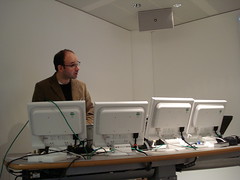 An interesting point made by Tom Steinberg of MySociety at barcampukgovweb was when he was asked about the best platform to use to operate an online working group. An example of a working group like this could be those who attended the barcamp – how could they manage their interactions online in the future?
Tom’s response was that the mailing list was the best way for a group of people to communicate online, and so for the barcampers, the best thing to do would be to stick with the Google Group already created (by me, heh heh). I chipped in at this point with my theory as to why email lists seem to work well, especially with government types. It’s because email is work, and the web is not work. People are now so used to working through their email, that they are quite happy for it to be used for a number of purposes, whether it be news alerts (more popular than RSS feeds) or community interactions (more popular than social networks).
There are problems with email lists though, especially for community based collaborative efforts. Scalability is a major issue, with only 25-30 regular contributors being feasible on a list. The second is when individual work streams start to develop, which some list subscribers just aren’t interested in. Thirdly, you can’t work collaboratively on documents, and at that point additional services have to start to be used.
Lloyd Davis has started to put up the video he took on his blip.tv channel. I’ll repost them here as I come across them. Here Lloyd talks to Rob McKinnon.
I think this is the first video from the barcampukgovweb to get online – David Wilcox chatting to organiser Jeremy Gould.
[youtube:http://www.youtube.com/watch?v=Zsd9BAI15pk]
This is a presentation I created a while ago explaining just how easy it is to create a personalised search engine with Google CSE. I have had a few people ask me how this is done recently, so I thought it might be worth re-publishing it.
[slideshare 69077 customised-search-with-google4296]
I spoke last week at Creative Connectivity, a conference being organised by the Yorkshire and Humber Regional Support Centre, which is funded by the Joint Information Systems Committee – on the subject of the risks and opportunities presented by Web 2.0 and social media for e-learning providers.
I was surprised by some of the discussions – college staff are really paranoid about things going wrong, perhaps justifiably, I don’t know. But issues were raised that I just hadn’t occurred to me before. Take online adverts, for example, which I have for a long time accepted as a necessary evil for getting access to great free web tools. But what if a college lecturer advises a student to use a certain website, which happens to have adverts for (say) online dating? Apparently, the college could end up getting a kicking from parents.
As with all discussions about risk, though, the key questions are “So what?” and “What’s the worst that could happen?”. Certainly when it comes to issues around personal data, the latter is most pertinent. I mean, what information is likely to be left on a social network by a student that an identity thief could really make use of? And what use would a 16 year old’s identity be, anyway?
Still, I think there is an opportunity here for someone to put together a closed, safe, ad-free social network for schools and colleges.
Here are the slides that I presented, in case they are of use.
[slideshare 237302 risk-opportunities-of-web-20-1201025828755198-3]
If you would like me to come and have a chat at your organisation or event about any element of social media and web 2.0 tools – whether to communicate, collaborate or educate, do get in touch.
 Lloyd Davies gave a great introduction to Seesmic as one of his sessions at the barcamp, and I was chuffed when he let me have an invite to the service. Now, I have done nothing with video on the web, yet, and thought that maybe getting into this cool new service would kick start me.
So what’s Seesmic? Well, it’s to YouTube what Twitter is to WordPress. Kind of the same but smaller and shorter.
It’s got another thing in common with Twitter – it’s flakey as hell.
Lloyd warned me that the interface (a gigantic job lot of Flash) is crap, but that didn’t really prepare me for how woeful it is. I record my first embarrassing attempt at a video (apologies for the poor sound, I need to sort out my webcam settings) this morning, and now, nearly 12 hours later, it still hasn’t appeared in the ‘My Videos’ page, and the people I set as folk I want to follow still don’t appear either.
But I am sticking with it for now, and will try and get into the habit of regularly putting content up on Seesmic. It might even encourage me to start adding some more traditional video content to this blog. We’ll see.
This is probably going to be the first post of many as I try and get my head around the barcamp, what it all meant, and what happens now. The latter is the most important, I feel.
The day went well, everyone got along famously and it was brilliant – and worth the train fare – just to meet some really cool people for the first time, like Jeremy Gould, Lloyd Davies, David Wilcox, Jenny Brown, Tim Davies, and (finally!) Simon Dickson – who is, as I expected, a real livewire and a truly top guy. I also got to catch up with Steve Dale – always a joy – and Nick Booth, who is planning the next meeting of the Birmingham Social Media Club, as I think it is now going to be called. What was interesting was that this group of folk got on very well, and a germ of an idea was floating about with regard to meeting up more regularly, working more collaboratively to try and push forward our shared agenda, which is to get the public sector using the web properly.
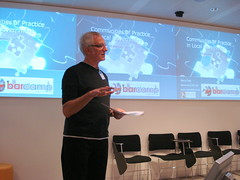 One thing I am pleased with is the Pageflakes page I put together, which seems to have done a good job of pulling together the outputs from the day – photos on flickr (this one is of Steve Dale talking CoPs), for example, and blog posts are popping up in the Google Blog Search and Technorati feeds. Cool. Perhaps this is the future of distributed online communities: use the tools you are comfortable with and build the community through common tags and RSS feeds. Why should I have to write a blog post about the barcamp, for example, on any platform other than my own blog? I don’t want or need another account, or site to maintain – just let me use the one I already have in a social way.
Two questions popped into my head during the day though. Neither were answered – which is perhaps not surprising and not necessarily a bad thing – but nor were they asked, which might be a bigger issue. Firstly: what’s the big idea? Where are we going with this? What do we want out of it? Secondly: what are we actually going to do?
There is talk of a new ‘Digital People’ project, involving those inside gov as well as those outside who have services and skills to offer, which may help to take the agenda forward. It should certainly cement the relationships which have begun to be built at the barcamp. But what’s the endgame here? What’s the point? Consultation is certainly a possibility, and perhaps political engagement too. But we need a clear idea of what we want to achieve before we can even begin to think about how that might happen.
Here are some posts I have spotted so far following the event: Tim Davies, Feargal Hogan… more to be added as they emerge.